
Add vendors from the catalog
From the Vendors page, choose Manage vendors to open the vendor catalog.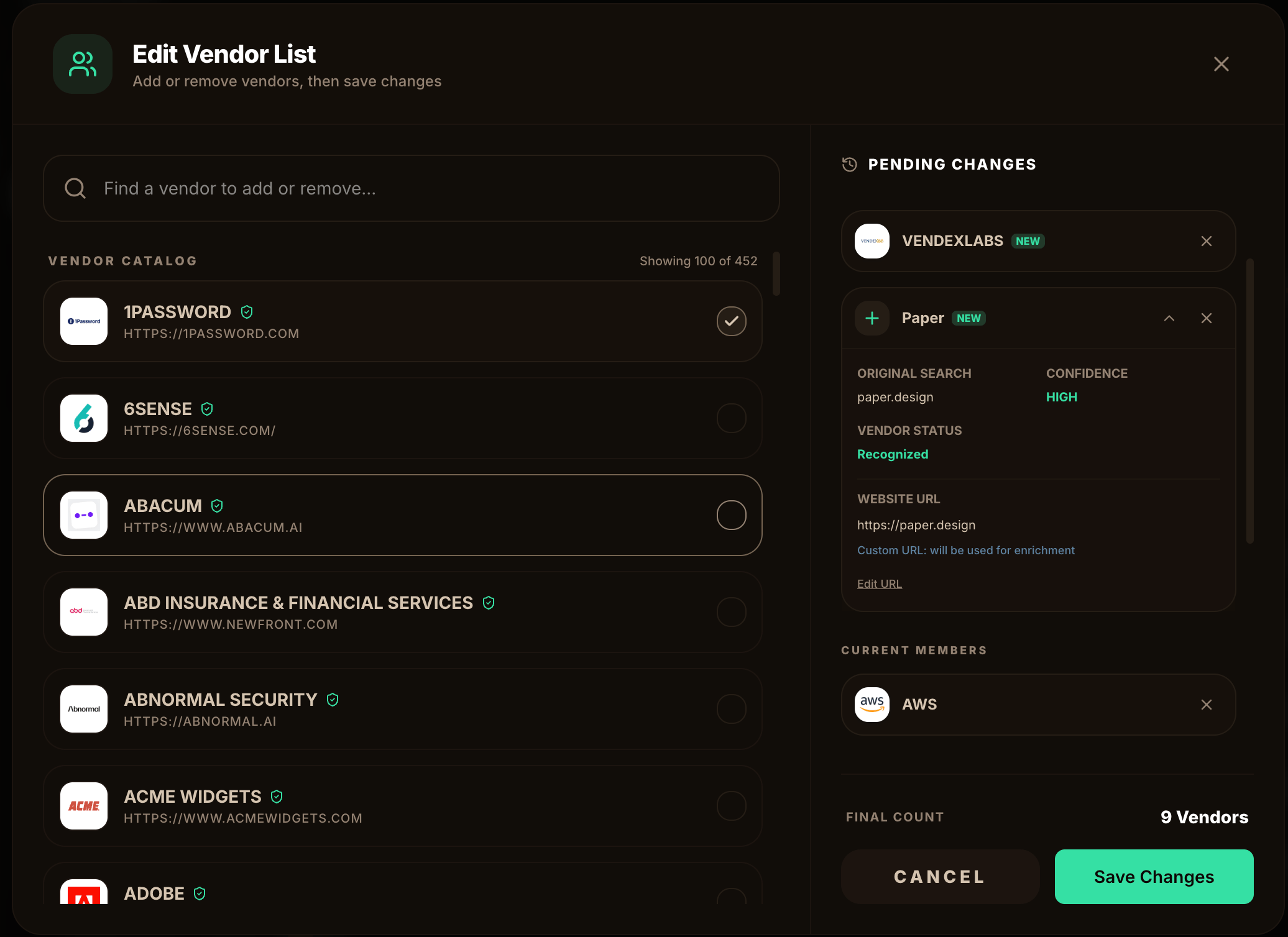
Find vendors
Search the catalog and select the vendors you work with. Recognized vendors are marked and added instantly.
Add a custom vendor
If a vendor isn’t in the catalog, add it by name and website. VendexLabs marks it as a new custom vendor and will enrich it from the website you provide.
Review pending changes
The right panel shows what you’re about to add or remove, along with the enrichment confidence and resolved website for each new vendor.
Save changes
Choose Save Changes. New custom vendors are queued for AI-powered enrichment — agent-based research assembles company details, security and privacy posture, and a first cited score, usually within a few minutes.
Each organization can add up to 500 distinct custom vendors. Vendors already in the shared catalog don’t count against that limit.
Import vendors from a CSV
To bring in an existing list, choose Import Vendors on the Vendors page.Prepare your CSV
Use the in-app format guide. Each row is a vendor; the vendor name is required. Optional columns include the vendor website and a product name (repeat a vendor across rows to add multiple products). You can also include assessment fields such as tier and status.
Validate (dry run)
VendexLabs validates your file first and shows a preview, including any custom vendors it doesn’t yet recognize, before writing anything.
Large imports are processed in batches so they stay responsive. Files are capped at 1 MB and 500 rows per import.
Set the dependency tier
After adding vendors, set each vendor’s dependency tier — Core, Standard, or Minimal — from the vendor row, the detail page, or your CSV. Tier drives how much each vendor affects your portfolio posture.Run an assessment
With vendors in place, record your first approval decision.