> ## Documentation Index
> Fetch the complete documentation index at: https://docs.vendexlabs.com/llms.txt
> Use this file to discover all available pages before exploring further.
# Quickstart
> Set up your vendor portfolio, score your first vendor, and record an approval decision.
This guide takes you from an empty account to a scored, tracked vendor in a few minutes. You'll add vendors, review the risk posture VendexLabs generates, and record your first approval.
You'll need an account at [app.vendexlabs.com](https://app.vendexlabs.com). If your organization already uses VendexLabs, ask an owner or admin to invite you. See [Organizations & members](/account/organizations-and-members).
From the **Vendors** page, choose **Manage vendors** to open the vendor catalog, or **Import Vendors** to bring in a whole list from a CSV.
Search the catalog and select the vendors you work with, or add a custom vendor by entering its website. VendexLabs recognizes known vendors instantly and queues unknown ones for enrichment.
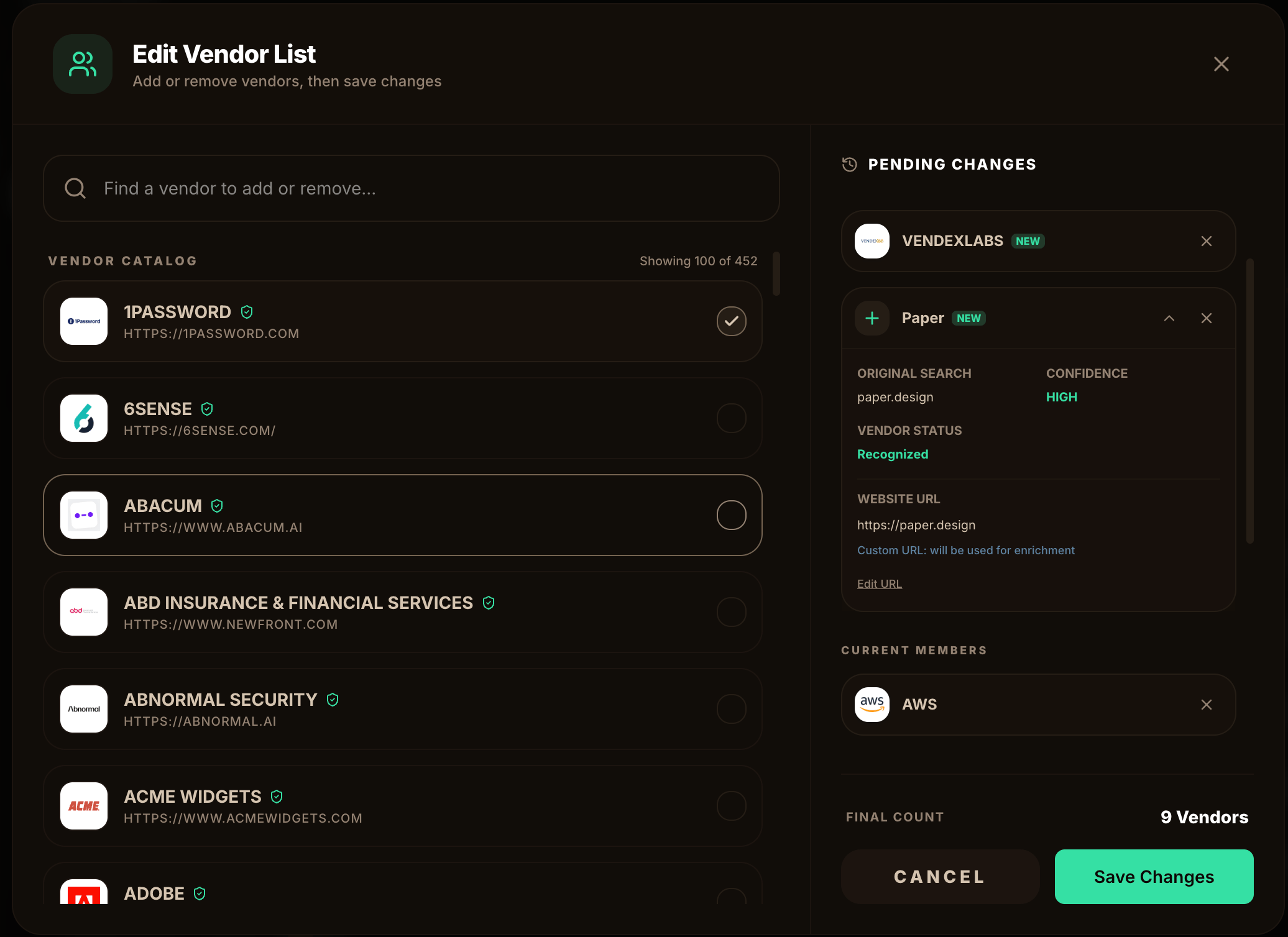 Adding a vendor VendexLabs hasn't seen before kicks off automatic enrichment from public sources — company details, security posture, privacy practices, and a first risk score. This usually completes within a few minutes.
A vendor's **dependency tier** describes how critical it is to your operations — how much you'd feel it if the vendor failed or was breached. Tiers weight each vendor's contribution to your overall portfolio posture.
Set the tier from the vendor row or the vendor's detail page. See [Dependency tiers](/concepts/dependency-tiers) for how to choose.
Open a vendor and go to **GRC Posture** to see the aggregate score (0–100), the breakdown across five trust domains, the integration depth, and a recommendation.
Adding a vendor VendexLabs hasn't seen before kicks off automatic enrichment from public sources — company details, security posture, privacy practices, and a first risk score. This usually completes within a few minutes.
A vendor's **dependency tier** describes how critical it is to your operations — how much you'd feel it if the vendor failed or was breached. Tiers weight each vendor's contribution to your overall portfolio posture.
Set the tier from the vendor row or the vendor's detail page. See [Dependency tiers](/concepts/dependency-tiers) for how to choose.
Open a vendor and go to **GRC Posture** to see the aggregate score (0–100), the breakdown across five trust domains, the integration depth, and a recommendation.
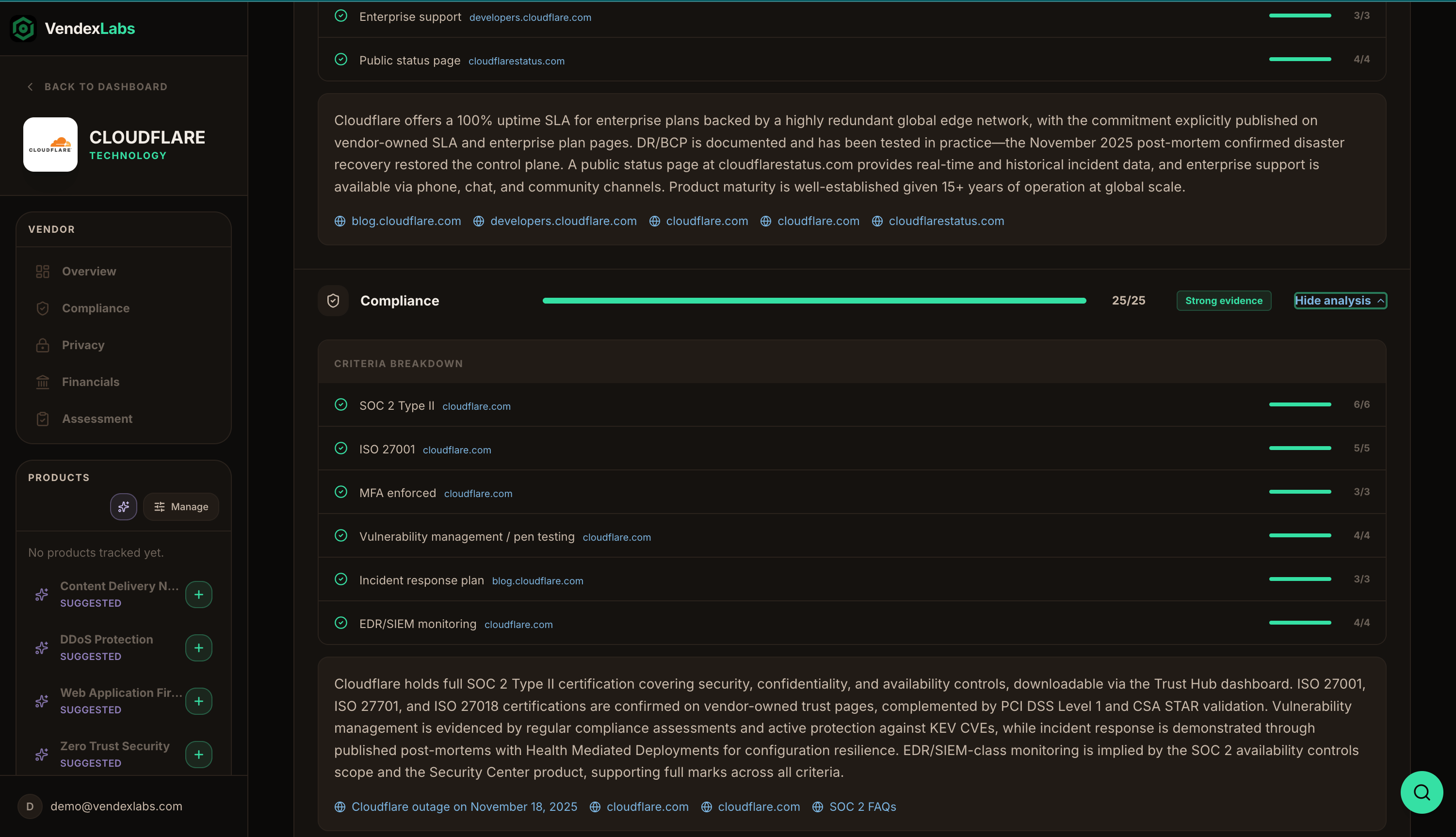 The score is produced from public evidence, then adjusted by how deeply the vendor integrates with your environment. Read [Risk scoring](/concepts/risk-scoring) to understand exactly how it's calculated.
Go to **Assessments**, open the vendor, and choose **Edit**. Fill in the business context (department, sponsor, use case), the data the vendor collects, and any compliance notes. Then set an **approval status** — for example, `Approved`, `Conditional Approval`, or `Rejected`.
The score is produced from public evidence, then adjusted by how deeply the vendor integrates with your environment. Read [Risk scoring](/concepts/risk-scoring) to understand exactly how it's calculated.
Go to **Assessments**, open the vendor, and choose **Edit**. Fill in the business context (department, sponsor, use case), the data the vendor collects, and any compliance notes. Then set an **approval status** — for example, `Approved`, `Conditional Approval`, or `Rejected`.
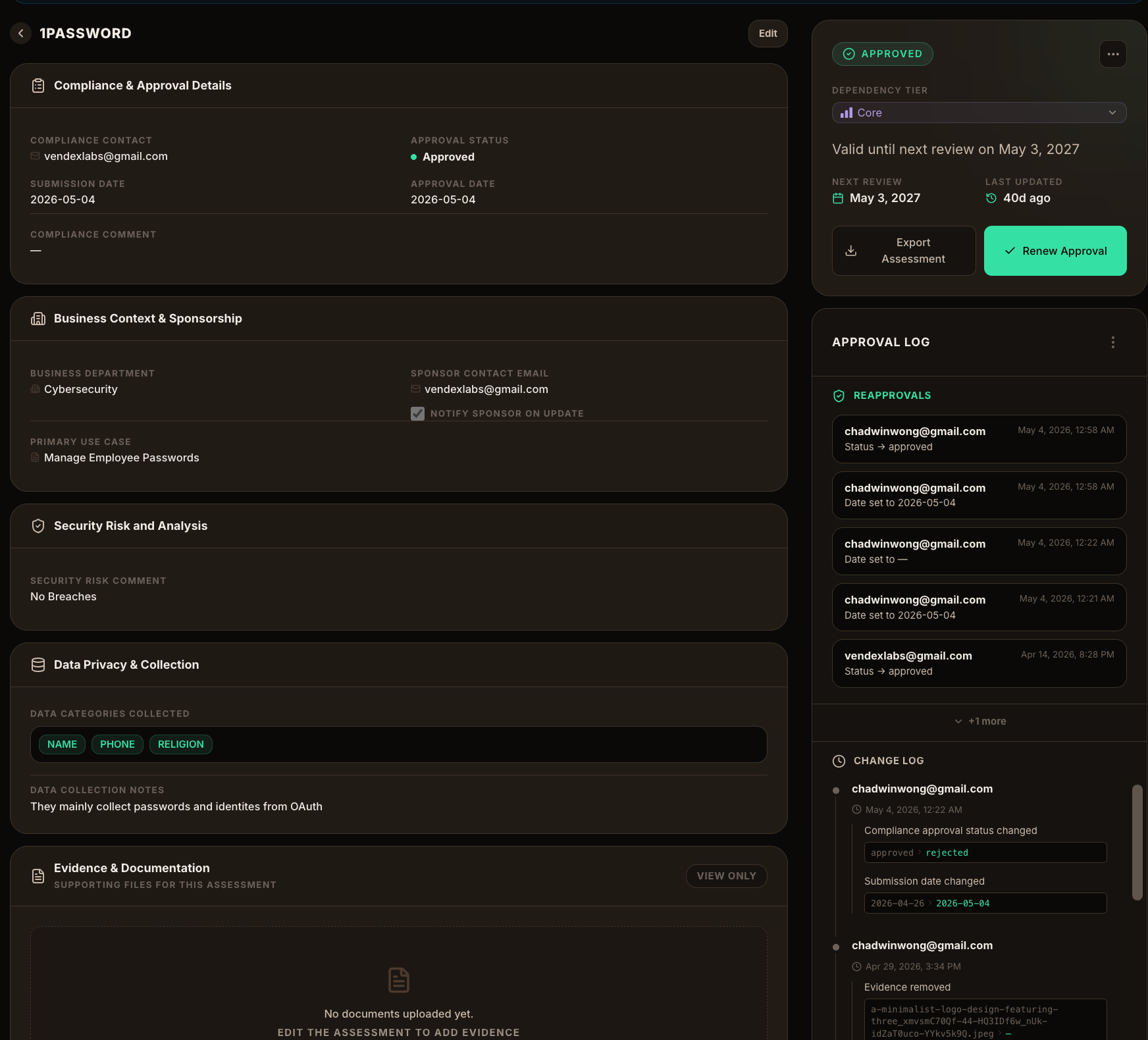 Every change is captured in the assessment's approval log, so you always have an audit trail. See [Run an assessment](/guides/run-an-assessment).
Head to the **Dashboard** to see your tier-weighted portfolio score, approval progress, and assessment status breakdown. Turn on monitoring so vendor incidents surface in **Recent Events**.
Every change is captured in the assessment's approval log, so you always have an audit trail. See [Run an assessment](/guides/run-an-assessment).
Head to the **Dashboard** to see your tier-weighted portfolio score, approval progress, and assessment status breakdown. Turn on monitoring so vendor incidents surface in **Recent Events**.
 ## Next steps
Understand the model behind the product.
Bring your existing vendor list in one step.
The five domains, integration depth, and floor rules.
Automate vendor and assessment workflows.
## Next steps
Understand the model behind the product.
Bring your existing vendor list in one step.
The five domains, integration depth, and floor rules.
Automate vendor and assessment workflows.