> ## Documentation Index
> Fetch the complete documentation index at: https://docs.vendexlabs.com/llms.txt
> Use this file to discover all available pages before exploring further.
# Run an assessment
> Record a compliance decision, attach evidence, and keep an audit trail.
An assessment captures your review of a vendor and the decision you reach. This guide walks through creating one end to end. For the concepts behind statuses and the audit log, see [Assessments](/concepts/assessments).
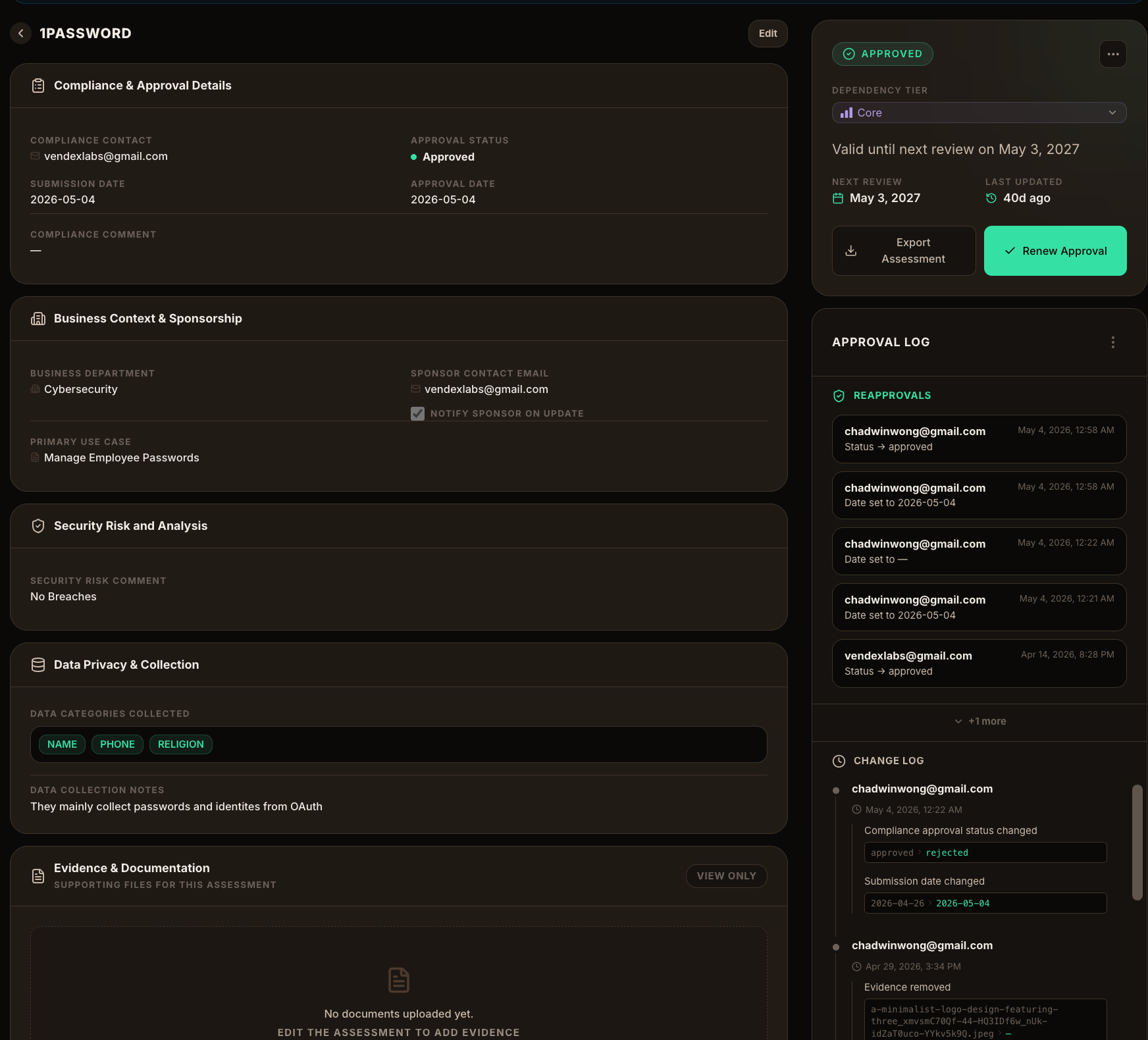 Go to **Assessments** and select the vendor. You'll see its current status, tier, and department, plus a detail panel. Choose **Edit** (or **Full page**) to make changes.
Record the sponsoring **department**, the internal **sponsor contact**, and the **primary use case**. Turn on sponsor notifications if you want the sponsor kept in the loop on updates.
List the **data categories** the vendor collects (for example, name, phone) and add notes on how that data is used. This is what makes the assessment useful for privacy reviews later.
Capture your **security risk** and **compliance** comments and the compliance contact responsible for the decision.
Upload supporting files — completed questionnaires, SOC 2 reports, certifications — under **Evidence & Documentation**. Evidence is stored with the assessment.
Choose the outcome: **Approved**, **Conditional Approval** (with the condition stated), **On Hold**, **Rejected**, or leave it **In Progress**. Set the submission and approval dates as appropriate.
Save your changes. VendexLabs records every field change in the approval log, grouped into a single event per save, with your name and a timestamp.
## Renewing an approval
Approvals are point-in-time. When a vendor's review date approaches, VendexLabs flags it. Open the assessment and choose **Renew Approval** to record a fresh review and reset the next-review date — the renewal is captured in the approval log like any other decision.
Exporting an assessment produces a board-ready PDF of the full record — status, context, evidence list, and history. See [Reports & exports](/guides/reports-and-exports).
Go to **Assessments** and select the vendor. You'll see its current status, tier, and department, plus a detail panel. Choose **Edit** (or **Full page**) to make changes.
Record the sponsoring **department**, the internal **sponsor contact**, and the **primary use case**. Turn on sponsor notifications if you want the sponsor kept in the loop on updates.
List the **data categories** the vendor collects (for example, name, phone) and add notes on how that data is used. This is what makes the assessment useful for privacy reviews later.
Capture your **security risk** and **compliance** comments and the compliance contact responsible for the decision.
Upload supporting files — completed questionnaires, SOC 2 reports, certifications — under **Evidence & Documentation**. Evidence is stored with the assessment.
Choose the outcome: **Approved**, **Conditional Approval** (with the condition stated), **On Hold**, **Rejected**, or leave it **In Progress**. Set the submission and approval dates as appropriate.
Save your changes. VendexLabs records every field change in the approval log, grouped into a single event per save, with your name and a timestamp.
## Renewing an approval
Approvals are point-in-time. When a vendor's review date approaches, VendexLabs flags it. Open the assessment and choose **Renew Approval** to record a fresh review and reset the next-review date — the renewal is captured in the approval log like any other decision.
Exporting an assessment produces a board-ready PDF of the full record — status, context, evidence list, and history. See [Reports & exports](/guides/reports-and-exports).